

Your #1 resource for online training on Power BI, Power Query, Power Pivot, and Excel
- Tweets3.2K
- Following133
- Followers1.7K
- Likes1.6K







ALT Now you can master data cleaning and transformation (Database icon with a sweeping broom on top) (Skillwave Training logo)
![Master Your Data in Excel & Power BI
Pattern Difficulty: Lo Code
Extract to New Column Based
on Data in Next Row Recipe
Preparation:
Perform any possible preliminary cleanup
Add [Index] column: Add Columns -> Index Column -> From 0
Add [Index.1] column: Add Columns -> Index Column -> From 1
Extract Data Into New Column:
Go to Home -> Merge Queries As New -> Merge against itself
Match [Index.1] (top) against [Index] (bottom)
Expand the [Compare] column only, creating [Compare.1]
Sort by the [Index] column (ascending)
Create a Conditional Column:
=if [Compare.1]= "pattern" then [Target] else null
Right click the new column -> Fill -> up/down (as needed)
Filter the [Compare.1] column to remove the pattern
Remove the [Index], [Index.1] and [Compare.1] columns
Finish cleanup
(Screenshot of the Target and Compare columns in the Power Query Editor, with the Index cells highlighted to show the pattern to use in the Conditional Column formula.)](https://pbs.twimg.com/media/HUn4BpGbYAAOQdo.jpg?name=orig)
ALT Master Your Data in Excel & Power BI Pattern Difficulty: Lo Code Extract to New Column Based on Data in Next Row Recipe Preparation: Perform any possible preliminary cleanup Add [Index] column: Add Columns -> Index Column -> From 0 Add [Index.1] column: Add Columns -> Index Column -> From 1 Extract Data Into New Column: Go to Home -> Merge Queries As New -> Merge against itself Match [Index.1] (top) against [Index] (bottom) Expand the [Compare] column only, creating [Compare.1] Sort by the [Index] column (ascending) Create a Conditional Column: =if [Compare.1]= "pattern" then [Target] else null Right click the new column -> Fill -> up/down (as needed) Filter the [Compare.1] column to remove the pattern Remove the [Index], [Index.1] and [Compare.1] columns Finish cleanup (Screenshot of the Target and Compare columns in the Power Query Editor, with the Index cells highlighted to show the pattern to use in the Conditional Column formula.)


ALT Taming NaN Values in Your Source Data (Image of a woman sitting at a table working intently on a laptop) (Skillwave Training logo)

ALT News From the Data Monkey Brought to you by Excelguru and Skillwave October 13, 2026 In This Issue: - From the AKA Sessions - New video blog on understanding and fixing blanks in PivotTables - What's New in Excel - Latest Meet-up Recording and Next Event Information - Upcoming Courses and Conferences - Monkey Tools Updates - Available Training Options Yesterday was Thanksgiving here in Canada, and we just wanted to take a moment to say "thank you" to all of our newsletter subscribers, students, meet-up participants, and those who follow us on social media. YOU are the reason we do what we do, and we absolutely love the Excel and Power BI community! Every course enrollment, event registration, newsletter subscription, and like or comment on our social channels mean the world to us. Thank you for being a part of it!

ALT (M)agic Tricks for Data Wizards (Icon of a laptop with a magic wand on the screen and a wizard's hat draped over the top right corner) Tips and Tricks for Power Query in Excel and Power BI by Ken Puls and Miguel Escobar

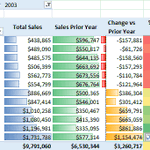
ALT Screenshot of a PivotTable showing the Total Sales, Sales Prior Year, Change vs Prior Year, and % Change vs Prior Year for each of the 12 months of the selected year. Formatting has also been applied to help highlight increases vs decreases for each month.

ALT (Skillwave Training logo) Power Query Academy - Intermediate to Advanced: "All the classes were really good. Since they already come with the templates, it's easy to follow along." Mazureyk Temoteo (5 stars) Free with registration: Master Your Data with Excel and Power BI and Power Query Recipes

ALT Turning Durations Into Hours A student asked how to compare hours logged in a project management system against data from time-tracking software. Ken Puls’ solution used Power Query to clean and transform the data from both sources into a common data type, which could then be more easily compared! (Screenshot of the Power Query Editor displaying the initial time tracker data in the Screen Time columns as miniscule decimals. The Transform > Duration > Total Hours options from the ribbon are highlighted, which then displays the converted values in Screen Time column.) (Skillwave Training logo)

ALT At the core of every BI solution is the Data Model. But do you really know how to work with it properly? Dimensional Modeling for the Excel and Power BI Pro (Image of a man sitting in front of a laptop with a cup of coffee beside him. His left hand is on his chin and he's looking up and to the right.) Start Learning (Skillwave Training logo)
![Master Your Data in Excel & Power BI
Pattern Difficulty: Lo Code
Number Grouped Rows Recipe
Initial Preparation
Sort any [Dimension] column(s) to group the data
Sort the [Fact] column -> Descending
Re-apply the column data types
Group the Data
Go to Transform -> Group -> Advanced
Group by the [Dimension] column(s)
Add a new column called “Data” -> All Rows
Add Row Numbers
Go to Add Column -> Custom Column
Name: Custom
Formula: =Table.AddIndexColumn([Data], "Index", 1, 1)
Right click the [Custom] column -> Remove Other Columns
Expand all columns from [Custom]
Re-order the columns if desired
(Image of a Source Table containing data first listed by Group, then category. A second Table With Numbered Rows image shows the addition with an index column where each Category within a Group is numbered sequentially by row.)
DBAs know this output as using SQL’s ROW_NUMBER with PARTITION
For more data patterns, check out our courses at skillwave.training](https://pbs.twimg.com/media/HTkWn_NaUAAoM_X.jpg?name=orig)
ALT Master Your Data in Excel & Power BI Pattern Difficulty: Lo Code Number Grouped Rows Recipe Initial Preparation Sort any [Dimension] column(s) to group the data Sort the [Fact] column -> Descending Re-apply the column data types Group the Data Go to Transform -> Group -> Advanced Group by the [Dimension] column(s) Add a new column called “Data” -> All Rows Add Row Numbers Go to Add Column -> Custom Column Name: Custom Formula: =Table.AddIndexColumn([Data], "Index", 1, 1) Right click the [Custom] column -> Remove Other Columns Expand all columns from [Custom] Re-order the columns if desired (Image of a Source Table containing data first listed by Group, then category. A second Table With Numbered Rows image shows the addition with an index column where each Category within a Group is numbered sequentially by row.) DBAs know this output as using SQL’s ROW_NUMBER with PARTITION For more data patterns, check out our courses at skillwave.training


ALT Is Power Query Showing You Old Data? If your worksheet seems to be showing old values, even after a refresh, first click ‘Refresh Preview’. Power Query caches preview values inside the file, so the Query Editor and hover cards can show stale results even after ‘Refresh All’ has loaded fresh data to the worksheet. (Screenshot of the Home tab in the Power Query Editor. The Refresh Preview button is highlighted with a callout reading, “Debugging step 1: Click this button!”) (Skillwave Training logo)

ALT Learning = Power (Icon of a brain with a circle in the centre containing a lightning bolt) (Skillwave Training logo)