







We have talked a lot about our PC optimization, but never about the foundation behind every setup we deliver
Every grobPC optimization starts with AerialOS, our own Windows 11 build designed for competitive gaming, minimal latency and consistent performance
Why AerialOS instead of another “lite” Windows
1 // Lite builds
Most custom builds strip Windows to make it smaller and supposedly faster. They cut Store, Defender, updates, Edge, and pieces of servicing. On traces, that system no longer behaves like Windows. Components look for things that aren’t there. Services break. Behavior drifts
2 // AerialOS
Is a normal Windows 11 that wasn’t gutted. Defender, Microsoft Store, and Windows Update stay. The ecosystem is intact, so the system still behaves like regular Windows — without ads in the UI and without tweak guides from the 2010s
Full Windows at stock level: less hassle than assembling a custom image yourself, and the machine still has to run as one piece
3 // How it’s built
The image is serviced through official DISM. AerialOS moved off NTLite to DISM, so servicing stays in the official stack instead of an NTLite lite-build. The CBS / WinSxS store isn’t stripped. Kernel, drivers, and services stay stock
Needed components, drivers, services, and SxS have no right to be removed just to cut the process count or make the system look lighter. This isn’t an NTLite lite-build in the SapphireOS, KernelOS, GhostSpectre, or X-Lite sense, where packages get pulled out of the component store
4 // Why this isn’t placebo
The system was checked with the same tools Microsoft uses on Windows: WPR, WPA, Xperf, GPUView, Media eXperience Analyzer (MXA), WinDbg, and powercfg. Development follows Windows Internals, not recycled registry packs or “gaming tweaks” cherry-picked from 2000–2019
If a change doesn’t show up on a trace, it doesn’t go into the build
5 // Power
The base is the Balanced power plan — that’s the scheme Microsoft documents and Windows Internals treat as the reference. The plan is built with powercfg only. No third-party power-plan software
Disk and monitor timeouts and selected power-saving policies are adjusted so the machine responds faster in-game. This isn’t a homemade “Ultra Gaming” plan, and it isn’t High Performance with everything turned off
6 // Standalone utilities
A few utilities ship in the image so you don’t have to hunt forums after setup: MouseTester, UsbTreeView, MSI Mode Utility, GoInterruptPolicy, and ReservedCpuSets. Don’t stack third-party tweak packs on top. They overwrite what’s already set
7 // Who it’s for
Esports first: CS2, Valorant, low latency, steady frame times. Work components are still there — Store, Defender, updates, office apps, the browser. The system is meant to run as one piece, not as a Windows that only exists for a match
8 // What you need on your side
Basic Windows skills: a clean, correct reinstall, then the right drivers for your PC so the system runs properly
Post-install stays minimal. Fewer cosmetic tweaks means fewer conflicts and a more stable system. If you want to change individual settings later, use the post-install folder. That part takes more than basic Windows skills. You need to understand what you’re changing. If you don’t, leave it alone
9 // What you get
No promised “plus a hundred frames.” No claim that this is some separate real-time OS. What you get is a complete Windows that runs better than stock, with settings you can verify on the same Microsoft toolchain
Even before individual tuning, AerialOS provides a cleaner, more responsive and more consistent baseline than an untouched Windows installation
But the OS is only the foundation
We then configure Windows, drivers, BIOS and registry parameters, tune the RAM, and safely overclock individual components for the exact PC and player
To book an appointment dm me💌


Why more cores doesn’t mean better
CS2 performance 🤔
9800X3D / 9850X3D vs 9950X3D in CS2
A CCD is one chiplet of cores with its own L3. 9800X3D and 9850X3D are one CCD: 8c/16t, 120 W TDP, 96 MB L3 on every core. The match has one cache to sit on. Nowhere for the game to miss it. 9850X3D is a better-binned 9800X3D — 5.6 GHz boost instead of 5.2. Same topology. You pay for clocks, not a new design.
9950X3D is two CCDs on one IOD. Cache CCD: 96 MB L3. Frequency CCD: higher boost, up to 5.7 GHz, 32 MB L3. The spec sheet says 16 cores / 32 threads and 128 MB L3. That is two pools, not one. Crossing them costs Infinity Fabric. A driver can hide the hop. It cannot remove it.
CS2 does not use the core count on the box. It uses L3 on the cores running the match, boost on those cores, and threads that stay on one CCD. The game will not feed 16 cores in a match. The second CCD is extra scheduler work, not extra aim. On the 8-core parts the scheduler cannot pick the wrong cache. On the 9950X3D it can. Average FPS can look fine. Frametime will not.
What actually steers a 9950X3D: Provisioning Packages can park the non-cache CCD. The 3D V-Cache optimizer does not park anything — it only favors a CCD. Current AMD chipset, including the Application Compatibility Database. An old chipset is how CS2 ends up on the frequency CCD and “feels inconsistent.”
When that stack works, a 9950X3D plays like a 9800X3D with spare silicon. Reviews already have them trading blows. When it does not, threads leak, 1% lows fall over, and average FPS still looks fine. 170 W TDP (≈230 W PPT) versus 120 W TDP (≈162 W PPT) is not free. Published CS2 wall-power tests showed about 40–60 W more even with the frequency CCD mostly idle.
9950X3D is the right buy if the second CCD has a job: OBS, browser, compile, VM. A CS2-only box does not need it.
If you already own a 9950X3D
BIOS: CPPC on. CPPC Dynamic Preferred Cores set to Driver — that is the correct handoff to Windows, not Cache “just in case.” C-states on. Do not kill core C-states to chase latency; cut DF C-States if fabric wake is the issue. Leave SMT on. Skip vendor Turbo modes that disable the frequency CCD and SMT unless you want to pay for 16 cores and play as 8.
Windows: Balanced. Not High Performance, not Ultimate — those plans fight parking. Let the AMD services run. Current chipset. Do not stack Process Lasso or ParkControl on top of AMD’s policy. PCI Express Link State Power Management off. USB selective suspend off.
9800X3D / 9850X3D still belong on Balanced with C-states on. They just do not depend on parking.
Buy: CS2-first → 9850X3D if the price delta is small, 9800X3D if it is cheaper. Mixed workload → 9950X3D and leave the setup alone. Already on a 9950X3D and CS2 feels off → fix Balanced, chipset, Driver, and C-states before you buy another chip. If it only “gets fast” after a Turbo mode kills the frequency CCD, you became a 9800X3D with extra IOD tax.
Do not treat 16 cores as a CS2 upgrade.
Do not compare a frequency-CCD-disabled 9950X3D to a 9800X3D.
Do not mix 9950X3D with 9950X3D2.
Do not prove scheduling with a warmup overlay on an empty map.
Buy the topology the game does not have to be talked into.
— mitzu

Hallo brotherman’s if you've encountered a similar error while using the AerialOS 26H2 / 26300.8346 build, just grab the new build based on 25H2 from our Discord channel, and the problem will be fixed. hf, cya ✌🏻
@FACEIT @FACEITcs @FACEITSupport
-mitzu

mitzu retweeted

You can't leave windows out. In win10 you can disable ctfmon.exe and textinputhost.exe to eliminate intermediate software interceptor layer, altering the execution path of input data (creating jitter). I haven't found a way to disable them in Win11 yet. See the pic below:
🤖 Made with AI

DF C-States – Updated Take
DF C-States control whether the Data Fabric is allowed to enter low-power states once every core has reached a deep C-state. When the fabric sleeps, idle power drops. When it has to wake up under load, there is a measurable latency cost and added jitter.
AMD’s own documentation is clear on this point. In their EPYC BIOS and Workload Tuning guides they state that Global C-State Control should generally stay enabled, because disabling it also kills core C-states. For low-latency or low-jitter workloads they specifically recommend disabling DF C-States instead. The official wording is that disabling DF C-States prevents the Infinity Fabric from entering a low-power state and reduces latency jitter, at the cost of higher power consumption.
This is the cleaner alternative. You keep deeper core C-states available while stopping the fabric itself from sleeping. Fully disabling Global C-State Control is the blunt approach and is the one AMD strongly advises against except for debugging.
On current desktop Zen 4 and Zen 5 platforms the effect is usually modest, but the principle remains the same. For competitive play, where frame delivery consistency matters more than a few watts at idle, I disable DF C-States. For a system that spends most of its time idle, I leave them enabled.
The decision is not based on community folklore. It lines up with what AMD themselves document as the correct way to handle the latency-versus-power trade-off on the Data Fabric.
- mitzu


Your Average FPS is Lying to You: Why Disabling C-States is a Silent Killer
"But my FPS stayed the same!"
When you disable C-States, average FPS might not change. But in competitive shooters, high numbers mean nothing if the game feels jittery.
What wins duels is frametime consistency and buttery-smooth mouse tracking. Disabling C-States destroys this.
Here is the technical breakdown of why this BIOS tweak ruins your gameplay 👇
— THE WINDOWS SCHEDULER CHAOS
Modern Windows 11 works in symbiosis with hardware power states via Intel Thread Director and AMD CPPC2.
When you disable C-States, you completely break Core Parking. The OS loses the ability to isolate background tasks. The scheduler gets confused, leading to erratic thread management that breaks the internal fluid pacing of your game.
— INTEL: THE POWER LIMIT TRAP
On Intel CPUs (12th-14th Gen), disabling C-States forces all cores to stay in the active C0 state 24/7.
This drastically increases Package Power draw and idle temperatures. Because the CPU hits its PL1/PL2 (power limits) and thermal ceilings much faster, it throttles single-core boost. Your single-thread speed drops, resulting in a heavier, less responsive feel during firefights.
— AMD RYZEN: THE CHIPLET NIGHTMARE
On AMD Zen, disabling C-States destroys the "softness" of the game due to the multi-chiplet layout. CPPC2 relies on Core Parking to tell Windows which cores are fastest.
If C-states are off (especially on dual-CCD like 7950X3D):
1. Core Parking breaks.
2. The OS fails to lock the game to the V-Cache CCD.
3. Threads bounce across the high-latency Infinity Fabric.
Result? Micro-stutters you won't see on an FPS counter, but will feel when flicking.
— WHAT THE TELEMETRY SHOWS (WPA)
If you analyze traces via Windows Performance Analyzer (WPA), disabling C-States does NOT lower execution latency.
Instead, it introduces massive micro-fluctuations in thread handling. Because the scheduler is fed conflicting power-state telemetry, it aggressively shuffles tasks, spiking systemic jitter (DPC / IRQ).
— VERDICT
Stop chasing placebo tweaks that promise lower latency but deliver a choppy experience.
Keep C-States on AUTO or ENABLED in your BIOS. Let the CPU microcode and the OS scheduler do their job. Your game will feel significantly smoother and more stable.
cya! 🖱💨

Your Average FPS is Lying to You: Why Disabling C-States is a Silent Killer
"But my FPS stayed the same!"
When you disable C-States, average FPS might not change. But in competitive shooters, high numbers mean nothing if the game feels jittery.
What wins duels is frametime consistency and buttery-smooth mouse tracking. Disabling C-States destroys this.
Here is the technical breakdown of why this BIOS tweak ruins your gameplay 👇
— THE WINDOWS SCHEDULER CHAOS
Modern Windows 11 works in symbiosis with hardware power states via Intel Thread Director and AMD CPPC2.
When you disable C-States, you completely break Core Parking. The OS loses the ability to isolate background tasks. The scheduler gets confused, leading to erratic thread management that breaks the internal fluid pacing of your game.
— INTEL: THE POWER LIMIT TRAP
On Intel CPUs (12th-14th Gen), disabling C-States forces all cores to stay in the active C0 state 24/7.
This drastically increases Package Power draw and idle temperatures. Because the CPU hits its PL1/PL2 (power limits) and thermal ceilings much faster, it throttles single-core boost. Your single-thread speed drops, resulting in a heavier, less responsive feel during firefights.
— AMD RYZEN: THE CHIPLET NIGHTMARE
On AMD Zen, disabling C-States destroys the "softness" of the game due to the multi-chiplet layout. CPPC2 relies on Core Parking to tell Windows which cores are fastest.
If C-states are off (especially on dual-CCD like 7950X3D):
1. Core Parking breaks.
2. The OS fails to lock the game to the V-Cache CCD.
3. Threads bounce across the high-latency Infinity Fabric.
Result? Micro-stutters you won't see on an FPS counter, but will feel when flicking.
— WHAT THE TELEMETRY SHOWS (WPA)
If you analyze traces via Windows Performance Analyzer (WPA), disabling C-States does NOT lower execution latency.
Instead, it introduces massive micro-fluctuations in thread handling. Because the scheduler is fed conflicting power-state telemetry, it aggressively shuffles tasks, spiking systemic jitter (DPC / IRQ).
— VERDICT
Stop chasing placebo tweaks that promise lower latency but deliver a choppy experience.
Keep C-States on AUTO or ENABLED in your BIOS. Let the CPU microcode and the OS scheduler do their job. Your game will feel significantly smoother and more stable.
cya! 🖱💨
Optimization on the bench PC
Ryzen 9 9900x3d
4070 Super
Video 1
Windows 11 25H2 (26200.8973) Stock
NVIDIA Game Ready driver 610.88 WHQL
Gigabyte X870 GAMING X WIFI7 Stock BIOS
1280x960 donk settings
fps_max 0 for test
!!*because of the bug it shows 0% gpu usage I hope u all understand its not possible*
Video 2
AerialOS 25H2 5.8.6 (26200.8894)
NVIDIA Game Ready driver 610.88 WHQL (full debloat + settings)
Gigabyte X870 GAMING X WIFI7
Full tuning BIOS (RAM, CPU, PowerSaving)
Custom Power Plan
GPU OC
1280x960 donk settings
fps_max 0 for test
Even on high end pcs u can tell a huge difference between stock and advanced settings ⚙️
More info in bio ⬆️
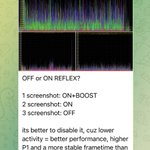
NVIDIA Reflex Technical Analysis: Core Mechanics, FPS Myths, and Real Impact on Stuttering
After my post about CS2 settings, a lot of people asked about NVIDIA Reflex, so here’s how it actually works
The debate over using NVIDIA Reflex in competitive titles like CS2 is ongoing. Some players view the technology as essential for minimizing latency, while others report degraded overall frame smoothness
This breakdown objectively examines how Reflex functions in theory, alongside frametime analytics gathered from real-world systems
1. Frame Queue Architecture and Input Lag
To understand what Reflex aims to fix, consider the rendering pipeline
1. The CPU processes user inputs (clicks, keypresses, mouse movement) and builds the frame command buffer
2. The GPU executes shader calculations, rasterization, and outputs the rendered frame to the display
When the system becomes GPU-bound, the CPU prepares frames faster than the GPU can render them. This creates a backlog queue of pre-rendered frames
If a player fires a weapon during this bottleneck, the frame containing that input sits at the end of the queue. The GPU must finish rendering the older frames first, causing a delay in visual feedback on screen. This delay is what manifests as high input lag
2. How NVIDIA Reflex Solves the Bottleneck
NVIDIA Reflex is an API integrated directly into the game engine designed to eliminate this GPU queue
Reflex synchronizes CPU and GPU pacing by holding back CPU render calls until the GPU is ready to process the next frame. Ideally, this delivers fresh input to the renderer without buffering delays
In-game, it offers two modes
- ON: Standard engine frame queue management
- ON + BOOST: Queue management combined with forced GPU clock states to prevent frequency downclocking
3. Reflex vs. NVIDIA Control Panel Low Latency Mode
- Low Latency Mode (Ultra) in the NVIDIA Control Panel operates at the driver level. It attempts to cap the frame queue externally without direct access to game engine events
- NVIDIA Reflex is integrated within the game engine itself, giving it higher priority. When Reflex is enabled in-game, driver-level low latency settings are overridden automatically
4. Empirical Testing: API Overhead, Frametime, and Micro-Stutters
While Reflex theoretically reduces input latency under GPU-bound scenarios, system profiling shows distinct trade-offs in practice
Across multiple test configurations analyzed using GPUView and Media eXperience Analyzer (MXA), several key behaviors were observed
1. API Overhead
Enabling ON or ON + BOOST introduces additional software overhead layer calls from the Reflex API stack. While intended to optimize latency, these extra processing layers can add system overhead depending on the hardware setup
2. Frame Drops and Micro-Stutters
On certain hardware configurations, artificial CPU pacing enforced by Reflex disrupted frame delivery consistency. In profiling tools, this appeared as intermittent frame drops and micro-stutters
3. Frametime Fluctuations
Due to this added overhead and altered pipeline timing, the frametime graph can become less consistent, directly impacting average FPS and frame pacing
Conclusion
- Reflex is theoretically effective in GPU-bound scenarios where minimizing frame queue latency is the top priority
- Performance varies by system: While Reflex works seamlessly on many PCs, it can induce frametime instability and micro-stutters on others
If you experience micro-stuttering with Reflex enabled, testing the game with Reflex set to OFF is recommended. Disabling it on affected systems can yield a smoother frametime graph, higher overall FPS, and cleaner visual pacing. Ultimately, your choice should be guided by how the game feels on your specific setup

Optimization on the Bench PC
Core i5-12400F
RTX 3050
First video:
Windows 11 25H2 (26200.8894)
NVIDIA Game Ready driver 610.74 WHQL
H610M | DDR4 Stock BIOS
1920x1080 ScreaM settings
Second video:
AerialOS 25H2 5.8.6 (26200.8894)
NVIDIA Game Ready driver 610.74 WHQL (full debloat + settings)
H610M | DDR4 full tuning BIOS (XMP, CPU, SCEWIN)
Custom Power Plan
GPU UV
1920x1080 ScreaM settings
Check bio for more 👆🏿


CS2 COMPLETE Graphics Settings Guide
A complete technical breakdown of every setting: what it does → how it works → FPS & visibility impact → recommended value
⸻
fps_max
There is no universal FPS limit
The best value depends on your hardware, monitor refresh rate and overall system tuning
fps_max 0 / -2
Unlike a traditional FPS cap, these values let the game run at maximum performance
On weak and mid-range PCs, they can increase GPU utilization and improve 1% lows
Some players also prefer the mouse and shooting feel of uncapped FPS
fps_max 500–999
These values apply a real FPS cap
On strong PCs, the sweet spot is usually around 100 FPS above your monitor refresh rate
For competitive CS2, refresh rates above 360–400 Hz offer little practical benefit
If your monitor exceeds 400 Hz, use fps_max 999 instead of 0
On high-end systems, uncapped FPS may reduce frame-time consistency, worsen mouse feel and introduce random spikes
Once your system produces more than enough FPS, consistency matters more than the highest possible number
On weaker systems, maximizing usable performance is usually the better priority
Best practice
Weak / mid-range PC → fps_max 0 or -2
High-end PC → Refresh rate +100 FPS
400+ Hz monitor → fps_max 999
⸻
Boost Player Contrast
-Increases player contrast against the environment through a light post-processing effect
FPS impact: negligible
Usually improves visibility at long range, near smokes and in darker areas
→ Enabled
Used by most professional players
⸻
V-Sync
ALWAYS OFF!!
⸻
NVIDIA Reflex Low Latency
Options: Off / On / On + Boost
Available on NVIDIA GPUs only
AMD users should test Anti-Lag or the equivalent driver option
-Reduces the render queue between the CPU and GPU
On + Boost: keeps GPU clocks higher during CPU-bound or low-load scenarios, slightly increasing power draw and temperatures
Recommendation
→ On or On + Boost if GPU usage stays around 90%+
On strong PCs, Reflex combined with 8x MSAA and an FPS cap around refresh rate +100 FPS often feels extremely smooth, with softer mouse input and better spray control
If you notice stuttering, test every Reflex mode with different FPS limits
-2 / 0 / 300 / 500 / 999
The first two values do not apply a traditional FPS cap
⸻
MSAA
Options: Off / 2x / 4x / 8x
-Smooths jagged edges by rendering multiple samples per pixel
One of the most GPU-intensive settings
Higher MSAA generally produces a softer, more stable image
Many players report that 8x MSAA provides
• smoother image motion
• softer spray feel
• slower-looking enemy peeks
• a more stable visual experience
These effects are easier to notice on powerful, properly tuned systems
Some still prefer MSAA Off because the game feels faster or their hardware is limited
It's no coincidence that most top-level players use 4x or 8x
→ 4x–8x if GPU headroom allows
→ Off on weak PCs or if you prefer the fastest visual feel
⸻
Global Shadow Quality
Options: Low / Medium / High
-Controls shadow resolution and draw distance
-Player shadows around corners and objects can reveal valuable information
Recent updates improved Low, but Medium and High still provide clearer, easier-to-read shadows
FPS impact: moderate to high
→ High if FPS allows
→ Medium/Low if you need performance while keeping player shadows visible
⸻
Dynamic Shadows
Options: Sun Only / All
Sun Only: renders primary sunlight shadows
All: also renders dynamic shadows from players and other light sources
→ All if performance allows
→ Sun Only on very weak systems
⸻
Model / Texture Detail
Options: Low / Medium / High
-Controls model complexity, texture resolution, weapon skins and environment textures
-FPS impact is usually moderate and depends mostly on VRAM and memory bandwidth
Competitive advantage is minimal
→ Low for a traditional competitive setup
→ Medium for cleaner textures and skins
High: may cause stuttering on GPUs with limited VRAM
⸻
Texture Filtering Mode
Options: Bilinear / Trilinear / Anisotropic 2x–16x
-Controls texture clarity at oblique viewingangles
Anisotropic Filtering has virtually no performance cost on modern GPUs
→ Bilinear: for the lowest GPU load
→ Anisotropic 4x–8x: for noticeably sharper textures and skins
Has almost no effect on enemy visibility
⸻
Shader Detail
Options: Low / High
-Controls material complexity, lighting, reflections and surface shine
-Noticeable FPS impact on weak and mid-range GPUs
-Provides virtually no competitive advantage
→ Low
⸻
Particle Detail
Options: Low / Medium / High
-Controls the quality and density of smoke, fire, sparks, explosions and Molotov effects
-Higher settings can make utility effects visually noisier, making smokes and fire harder to read and reducing player visibility around them
They can also cause larger FPS drops during utility-heavy fights
→ Low for the best visibility and performance
⸻
Ambient Occlusion
Options: Disabled / Medium / High
-Adds contact shadows around objects, corners and small surface details using screen-space shading
-FPS impact: moderate
-Can make dark areas slightly darker
Earlier CS2 versions sometimes provided useful additional shadow information, but today it's mostly cosmetic
→ Disabled: for competitive play
→ Medium/High: only if you already maintain consistently high FPS and prefer a richer image
⸻
HDR
Options: Performance / Quality
-Controls tone mapping and the balance between bright and dark areas
Quality: provides better visuals at a small performance cost
Performance: sacrifices image quality for slightly higher FPS
→ Quality if performance allows
→ Performance if you need more FPS
⸻
FSR
Options: Disabled / Ultra Quality / Quality / Balanced / Performance
-Renders the game at a lower internal resolution, then upscales the image
Pros: Higher FPS
Cons: More blur, image artifacts and reduced long-range clarity
→ Disabled unless you genuinely need the extra performance
If FPS is insufficient, try lowering MSAA, Shadow Quality or resolution before enabling FSR
⸻
First 2 screenshots: High-end PC settings
Second 2 screenshots: Low-end PC settings
⸻
Need your PC optimized by someone who actually understands how CS2 works, u can always DM me


Optimization on the Bench PC
Not gonna post 1000 FPS on empty maps
Core i5-12400F
RTX 3050
First Video
Windows 11 25H2 (26200.8875)
NVIDIA Game Ready Driver 610.74 WHQL
H610M K DDR4 Stock BIOS
1280×1024 Low CS Settings
fps_max 0
Second Video
AerialOS 25H2 5.8.5 (26200.8457)
NVIDIA Game Ready Driver 596.49 WHQL (full debloat + settings)
H610M K DDR4 Full BIOS Tuning (XMP, CPU, SCEWIN)
Custom Power Plan
GPU Undervolt (Forced Undervolt)
1280×1024 Low CS Settings
fps_max 0
Pay attention to the FPS drops after every frag
If this PC can do this, imagine what a high-end PC can do
Wonder what your PC is really capable of? DM me 💌
Your next GPU upgrade might not be worth it. 👀
A few years ago, upgrading your GPU every 18–24 months meant a huge leap in performance.
Today, that’s no longer the case.
Performance gains have slowed, VRAM isn’t getting cheaper, and modern GPUs rely more on AI features like DLSS and Frame Generation than massive improvements in raw rendering performance.
For many gamers, the biggest performance bottleneck isn’t their GPU anymore.
It’s Windows running unnecessary background processes, outdated drivers, poor BIOS settings, thermal throttling, or years of accumulated system clutter.
Surprisingly, many gamers spend hundreds — or even thousands — on new hardware without ever unlocking the full potential of the hardware they already own.
Before spending $800–$2,000 on your next GPU, make sure your current system is actually performing the way it should.
Sometimes the best upgrade isn’t new hardware — it’s getting the most out of the hardware you already have.
We help gamers unlock the full potential of their PCs through professional optimization — because your hardware deserves to perform at its best.
Wondering how much performance your PC is leaving on the table? Send us a DM.
🤖 Made with AI

mitzu retweeted
Instantly felt the difference after updating my PC Settings by @grobPC and dropped 2.10 rating playing EPL. Game feels much more smooth and clean 😍

