

📈We teach people how to use Excel to work faster 🏅Trained 97,778 students ⏰Saved them 100,000+ hours of work 🏆15,000 CPE Credits Issued ⬇️Excel University
Joined August 2012
- Tweets1.4K
- Following9
- Followers15.8K
- Likes6




One GROUPBY field gives you a summary. Two fields give you a hierarchy.
Use region + product, department + account, or CHOOSECOLS to reorder fields before GROUPBY.
That turns a flat export into a useful finance report—without rearranging the source data.

SUM returning 0 even though the cells look like amounts?
Your imported values may be stored as text.
Select the range → click the green warning icon → **Convert to Number**.
Then run SUM again. The formula may be fine—the data type was the problem.
#Excel #Accounting

Still copy/pasting the same CSV cleanup every month? Power Query lets you connect to the file, transform it once, load an Excel table, and use Refresh All next period. Fewer manual steps. More repeatable month-end reporting. #Excel #Accounting

Still matching vendor names by hand after every CSV import? Power Query fuzzy match can help unify messy accounts and vendors. See it with COPILOT + Agent Mode in our free AI in Excel webinar. 1 CPE for eligible CPAs: webinar.excel-university.com…

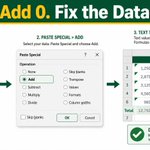
Large imported range stored as text? Try Paste Special → Add:
1. Enter 0 in a blank cell and copy it.
2. Select the range.
3. Paste Special → Add.
Adding zero doesn’t change the amounts, but it forces Excel to convert text numbers into real numbers.
#Excel #Accounting

A quick month-end PivotTable pattern: put Account in Rows, Amount in Values, and use Sum of Amount. Refresh the source, refresh the PivotTable, and your summary is ready. #Excel #Accounting

If your budget needs a new expense category, don’t rebuild the sheet.
Convert the range to an Excel Table, then drag the lower-right handle down. Add the category and monthly values inside the expanded Table.
Small setup. Easier maintenance.
#Excel


A budget can show income and expenses and still hide the key question: how much cash is left?
Add:
• Cash at Beginning of Month
• Cash at End of Month
Formula: =Beginning Cash + Income - Expenses
Link each month to prior month’s ending cash. Simple, dynamic, useful for forecasts.
#Excel

Your budget chart is missing December? Excel may still be using a Jan–Nov source range.
Select chart → Chart Design → Select Data → extend the labels and series values to include December.
Then use + to clean up labels, legend, or gridlines.
#Excel

A birth date isn’t an age. For completed years, use:
=TRUNC(YEARFRAC(BirthDate,AsOfDate,1))
YEARFRAC finds the years between dates. TRUNC removes the fractional year—so someone isn’t counted a year older before their birthday.
Useful for cohorts, benefits, and workforce reports.

Need completed years between two dates? Excel’s legacy DATEDIF function can do it:
=DATEDIF(BirthDate,AsOfDate,"Y")
The "Y" returns complete years. It may not appear in autocomplete, so type it manually. Useful for age, tenure, and service-year calculations.

Have an age column? Turn it into a flexible distribution with:
=COUNTIFS(AgeColumn,">="&LowerBound,AgeColumn,"<="&UpperBound)
Store bucket limits in cells, fill down, and change the ranges without rewriting formulas. Just make sure adjacent buckets don’t double-count shared endpoints.

One column may not uniquely identify a record. In Power Query, merge on a composite key—like Product ID + Option—and select the columns in the same order. If Cost is what you’re reconciling, leave it out of the key. Match identity first; compare values second. #Excel

A simple Power Query reconciliation pattern:
1) Merge on the fields that identify the record.
2) Expand the comparison amount.
3) Subtract old vs. new.
4) Filter out zero.
Now you’re looking only at exceptions—not every row.
#Excel #Accounting

Comparing two Excel lists? Use Power Query Merge:
Inner = items in both
Left Anti = only in list 1
Right Anti = only in list 2
Load each list as a connection, choose the join kind, then refresh next month. No copy/paste detective work.
#Excel #PowerQuery

GROUPBY can do more than sum.
Use it to filter to Open items, sort the grouped result largest-to-smallest, and control totals/subtotals.
That turns a spilled summary into a focused finance review tool—without reshaping the source data by hand.


Want Excel to highlight bad characters without a helper column?
1. Store your invalid-character list.
2. Name the range InvalidChars.
3. Use conditional formatting:
=COUNT(FIND(InvalidChars,B2))>0
Now exceptions light up directly in the imported data. #Excel

FIND vs SEARCH in Excel:
• FIND is case-sensitive and ignores wildcards.
• SEARCH ignores case and supports wildcards.
Use FIND for exact data-quality rules; SEARCH for flexible patterns. Test imported account IDs, vendor names, or invoice refs before they reach a report. #Excel
