

The intelligence layer for memecoin markets. Token intelligence • Auto Snipe • Launchpad • Wallets • Bridge CA: 0x4fc4300b9a593f99890d962b355cc4436a796b21
Robinhood
Joined September 2026
- Tweets102
- Following10
- Followers278
- Likes52





The next token on your watchlist might be part of a bigger story.
Explore related tokens with COOKING Narratives.
Follow the themes, compare the context, and make your own call.
cookingbot.fun
TG: t.me/cookingfunportal
CA: 0x4fc4300b9a593f99890d962b355cc4436a796b21

A ticker is not a thesis.
Before you trade, look at liquidity, holders, volume and the story behind the token.
COOKING brings the context together. You decide what happens next.
cookingbot.fun
TG: t.me/cookingfunportal
CA: 0x4fc4300b9a593f99890d962b355cc4436a796b21

Four steps between a new pair and your wallet:
Detect: new launches on Robinhood Chain and Solana, picked up as blocks land
Screen: hard filters, then Jev scores rug risk and quality
Act: one tap in Telegram, or an instant buy only if you allow it
Guard: sells on your stop-loss or take-profit
It’s cooking. cookingbot.fun
$COOKING still COOKING
CA: 0x4fc4300b9a593f99890d962b355cc4436a796b21
TG: t.me/cookingfunportal
HOW TO USE COOKING AUTO SNIPE
1. Choose your chains: Open Auto Snipe, select Robinhood Chain, Solana or both, and check your wallet balance.
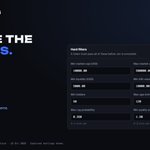
2. Set your limits: Configure maximum buy per token, daily budget and slippage.
3. Define your filters: Set market-cap, liquidity, volume, holder and age limits, plus Jev risk and quality thresholds. Choose narratives if wanted.
4. Configure your rules: Review exits, entry restrictions and timing. Choose whether Auto-sell should act automatically, then click Save rules.
5. Choose your buying mode: Turn on Enable Auto Snipe. Set Auto-execute ON for automatic buying, or OFF for Telegram alerts with a Buy button. Review everything, then click Save settings.
After setup, monitor Alerts, History and Positions.

HOW TO USE COOKING AUTO SNIPE
1. CHOOSE YOUR CHAINS
Open cookingbot.fun/dashboard/aut…. Choose Robinhood Chain, Solana or both in Chains and limits. Check your intended trading wallet and available native balance before enabling automation.
The graphics show the account's actual captured configuration. Selecting a chain in the form is separate from authorizing the engine.

HOW TO USE COOKING AUTO SNIPE
1. CHOOSE YOUR CHAINS
Open cookingbot.fun/dashboard/aut…. Choose Robinhood Chain, Solana or both in Chains and limits. Check your intended trading wallet and available native balance before enabling automation.
The graphics show the account's actual captured configuration. Selecting a chain in the form is separate from authorizing the engine.

4. PLAN YOUR RULES
Review EXIT, ENTRY and TIMING in Rules:
- EXIT: review stop loss, emergency exit, take-profit stages, trailing stop and maximum hold. The page says these rules apply to every new buy, manual or automatic. Auto-sell is separate from Auto-execute: on permits rule-triggered sells; off is described as Telegram alerts with Sell buttons.
- ENTRY: review name restrictions, blocked deployer wallets and launch-source choices. The page says no selected launch sources accepts all sources shown.
- TIMING: review the optional trading window, shown in UTC, and the losing-streak pause. The page says that pause turns Auto-execute off while alerts keep coming. Entry and timing rules gate automatic buys and alerts.
Use Save rules for changes to this section. Save settings is a separate action for the engine settings above. The page says open positions keep the rules they were bought with, so do not assume that editing these defaults changes existing positions.

5. CHOOSE YOUR MODE
Enable Auto Snipe authorizes the engine to evaluate new tokens within your configured limits. Auto-execute controls the buying mode:
- Off: the page describes Telegram alerts with a Buy button. Link your Telegram account for this workflow.
- On: the page describes automatic purchases when a token passes every filter, without a Telegram tap.
Review the full configuration and chosen mode, then use Save settings only when ready to authorize it. To stop authorization, turn Enable Auto Snipe off and save the change. Review existing positions and Auto-sell separately.
Monitor Alerts, History and Positions afterward. A pending request is still waiting on the engine; it does not confirm a completed trade. Screening and exit rules cannot guarantee safety or a successful exit.
cookingbot.fun


4. Open History to review requested buys and sells across dashboard, Telegram, Auto Snipe and Guardian actions.
Pending rows are waiting on the engine. A request alone doesn't confirm a completed trade.

5. Review. Recheck. Decide.
Alerts preserves alert context. History records requested trading activity.
Use both to review earlier activity, then recheck current token data before your next decision.
Explore at cookingbot.fun


4. Ready for another look?
Revisit the token in Lookup. Read liquidity, holders and volume alongside Jev's screening context and cautions.
A candidate you saved earlier still needs a fresh decision when you return.

5. Your shortlist. Your decision.
Save a candidate, revisit its context, then choose whether to keep researching or pass.
Being on a watchlist doesn't reduce a token's risk.
Explore COOKING Watchlist at cookingbot.fun
